
Favourites & Trash: Quick Access and Safe Deletes
Mark images as favourites for instant access, and understand how trash works in PikDB — including how to restore something you deleted by mistake.
Two small features make day-to-day use much smoother: **favourites** for the images you reach for constantly, and **trash** so a delete is never a disaster.
Favourites: one-click access
- 1
Mark a favourite
Hover (or tap) an image and click the **star** icon. It's instantly added to Favourites.
- 2
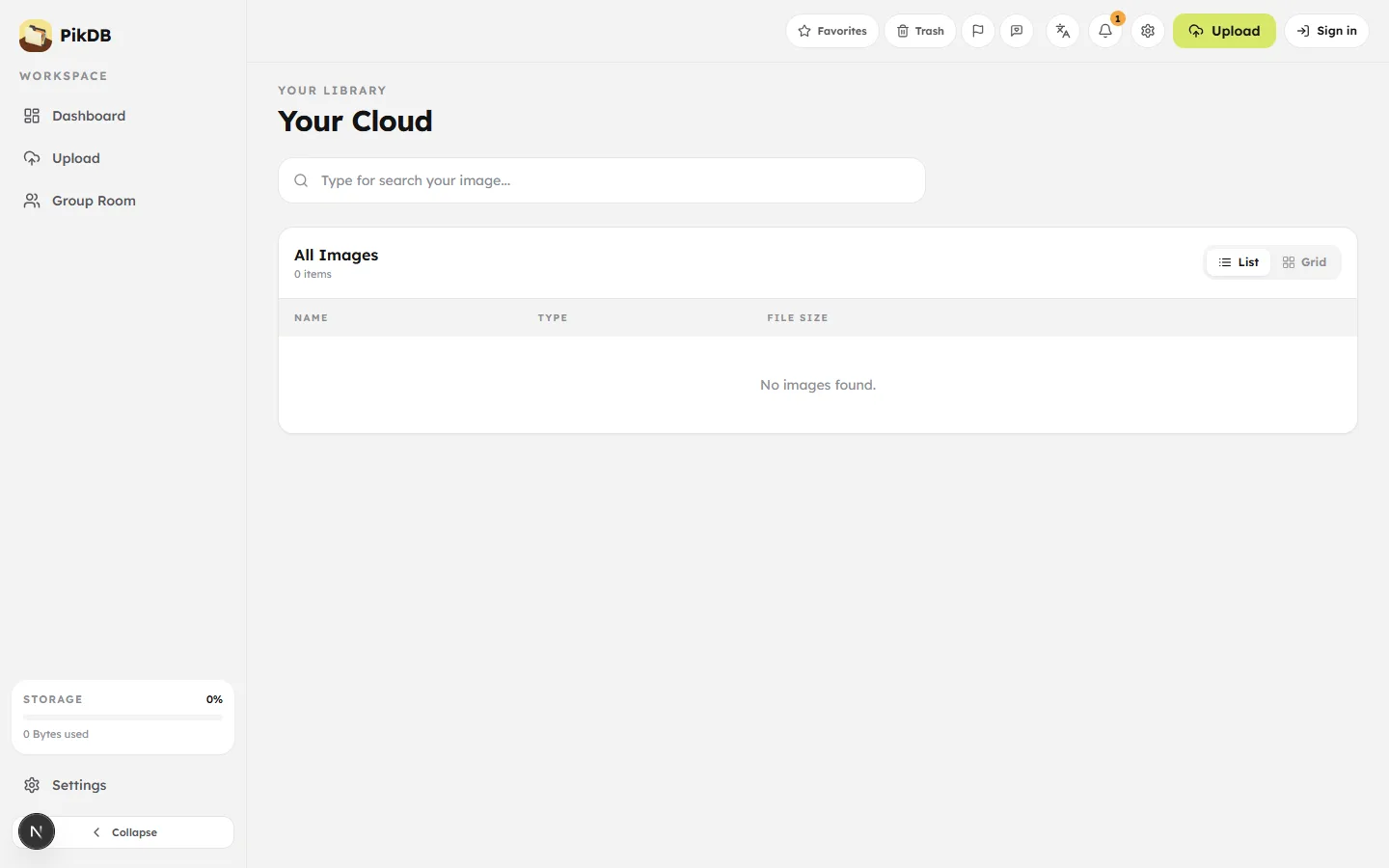
Open your Favourites
Click **Favourites** in the sidebar to see everything you've starred in one place.
Trash: deletes you can undo
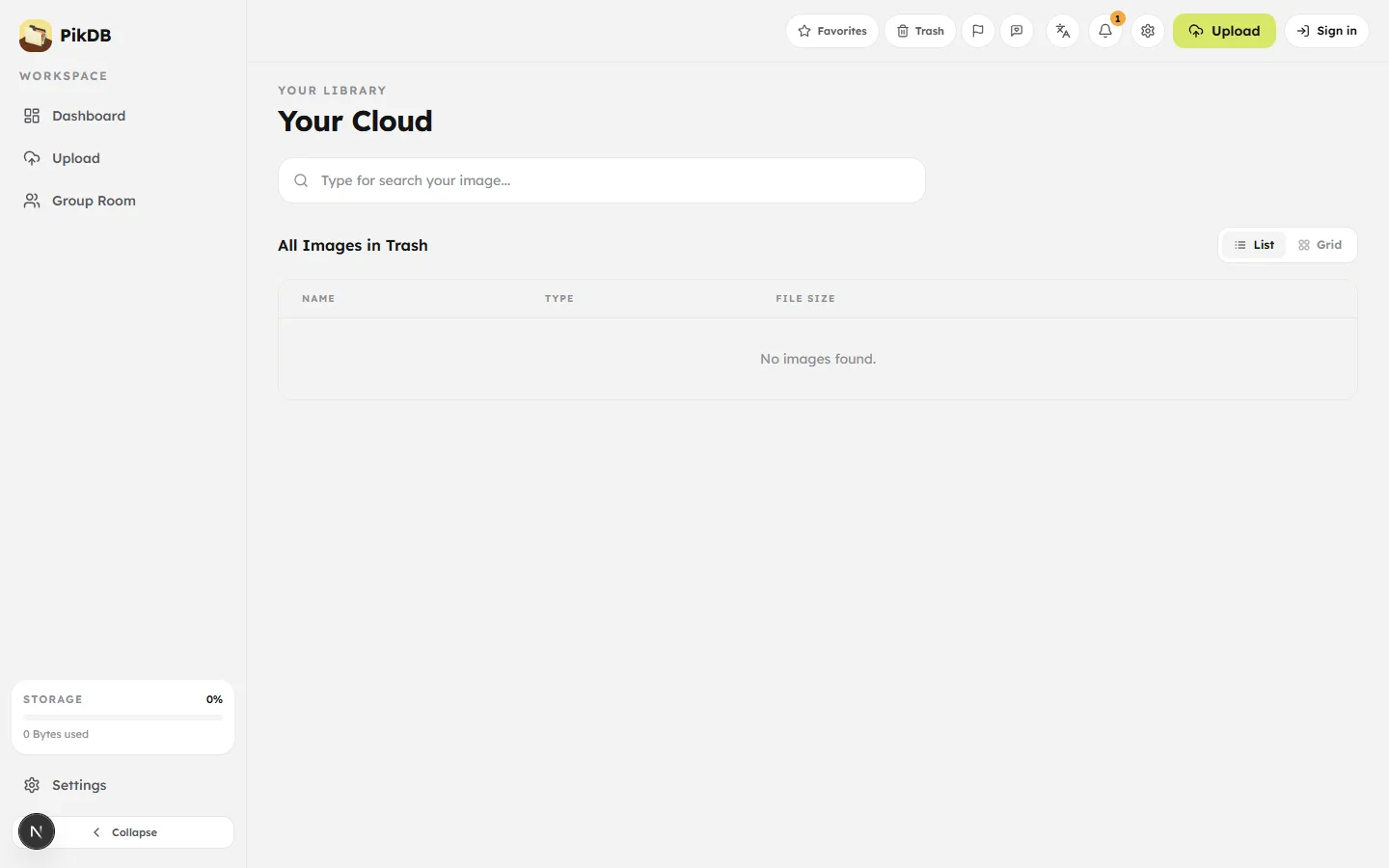
When you delete an image it moves to **Trash** rather than vanishing. From Trash you can **Restore** it, or empty the trash to remove it permanently. This safety net means a mis-click is easy to fix.
- 1
Restore from trash
Open **Trash** in the sidebar, find the image, and click **Restore** to send it back to your library.
- 2
Empty the trash (permanent)
To free space for good, use **Empty trash**. This cannot be undone.
Tips- Double-check before emptying — permanent deletes can't be recovered.
Emptying the trash is permanent. If you're unsure, restore the image instead and decide later.