
Organise Images with Folders
Keep a growing image library tidy. Learn how to create folders, move images into them, and use search and filters to find anything fast in PikDB.
On this page
A handful of images is easy to manage; hundreds are not. **Folders** turn a cluttered library into something you can actually navigate. This guide shows how to create them and keep things tidy.
Folders live in your library, so they work best when you're signed in — that way your organisation syncs across devices.
Create and use folders
- 1
Create a new folder
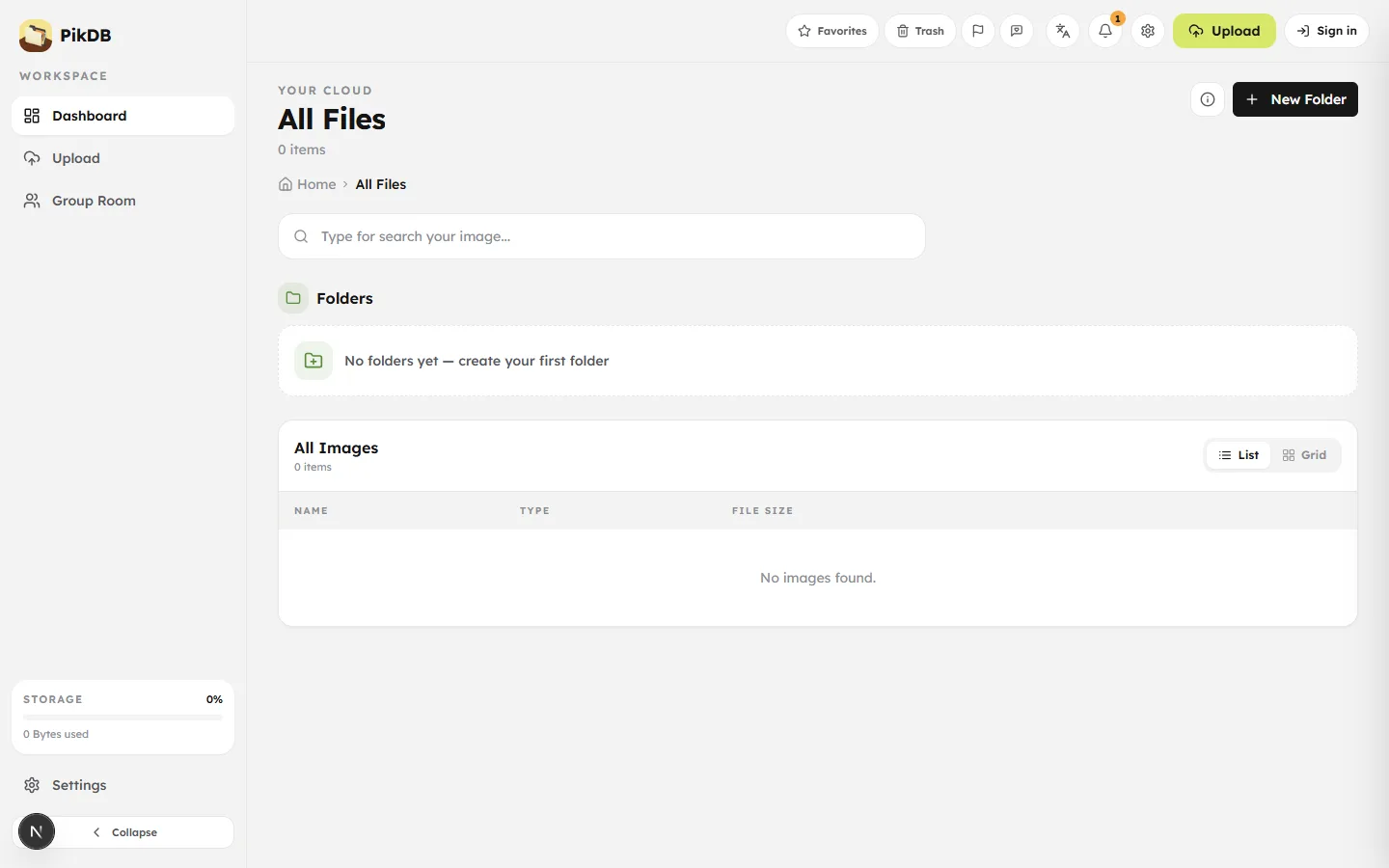
In the dashboard, open the **New folder** action, type a clear name (e.g. "Travel 2026"), and confirm.
 Tips
- Descriptive names ('Receipts', 'Logos') beat generic ones ('New folder 2').
- 2
Move images into a folder
Select one or more images, then use **Move** and choose the destination folder.
- 3
Open a folder to browse it
Click a folder in the sidebar to view only its images. The search bar still works inside a folder.
Folders plus search is the fastest way to find anything. Folders give you broad buckets ('Work', 'Personal'); search narrows within them. Together they scale from ten images to ten thousand.
Find images fast
- Type in the **search bar** to match by file name.
- Apply **filters** (date, type) to shrink the results.
- Open a **folder** first to search within a smaller set.
- Mark your most-used images as **favourites** for one-click access.