
Settings & Browser Permissions
Configure PikDB to suit you: theme and text size, notifications, and browser permissions like camera and location — all from the settings page.
PikDB adapts to you. From the **settings page** you can tune the look and feel, control notifications, and manage the browser permissions that unlock features like capturing a photo with your camera.
Open settings
- 1
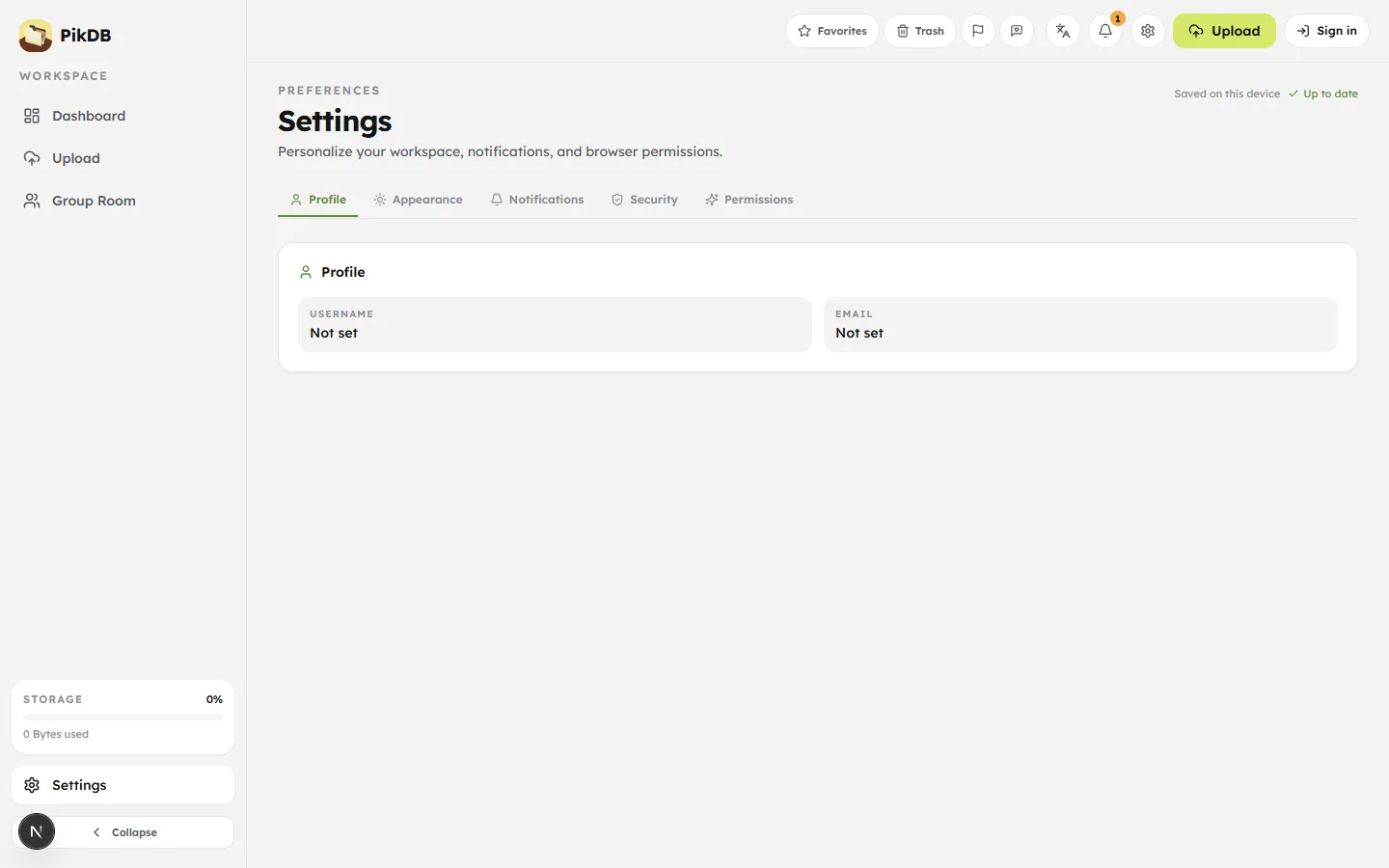
Go to Settings
In the dashboard, click **Settings** in the sidebar, or open it from the account menu.
- 2
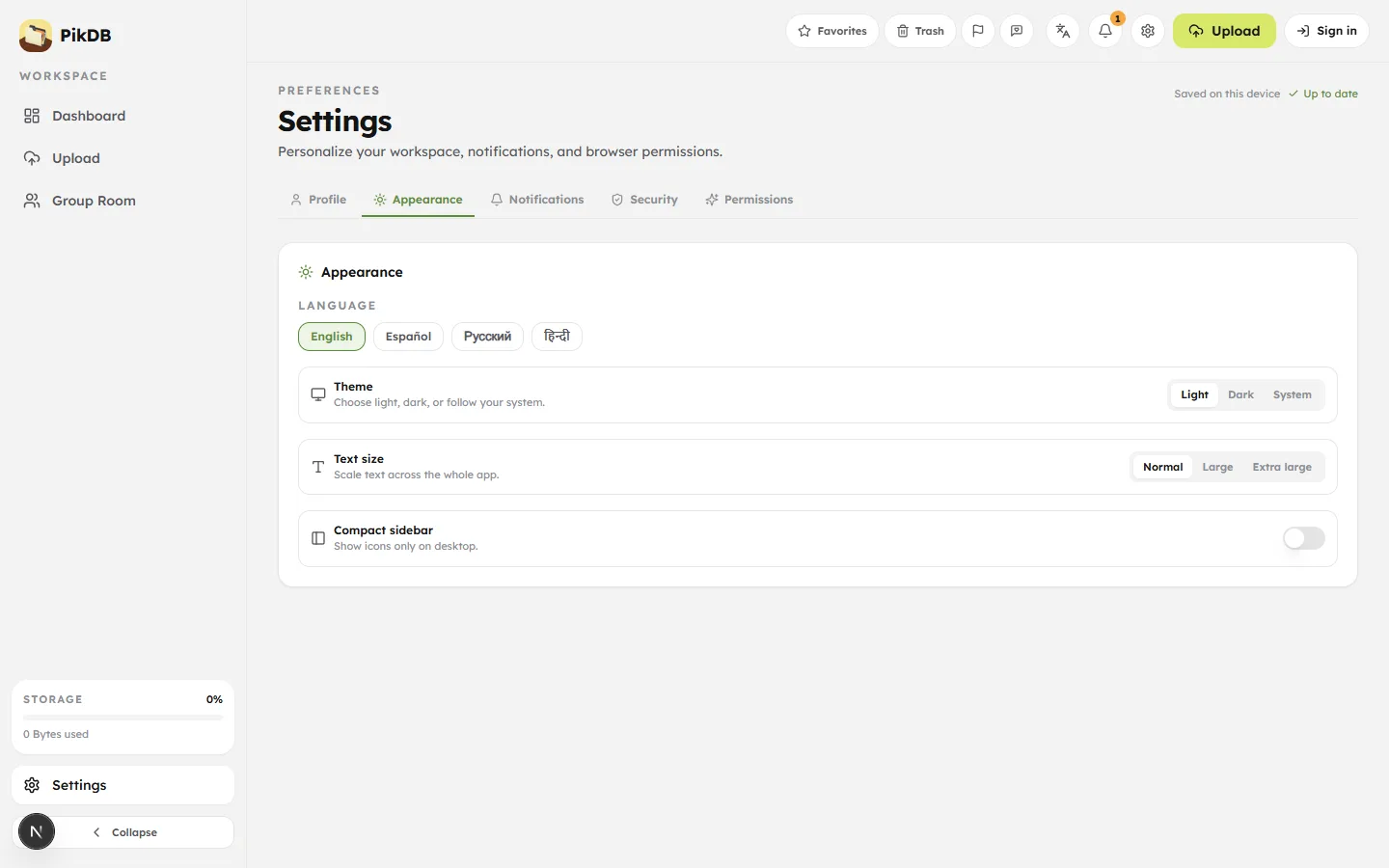
Adjust appearance
Choose a **theme** (light, dark, or system) and a **text size** that's comfortable to read.
 Tips
- 'System' theme follows your device's light/dark setting automatically.
- 3
Manage permissions
Grant or revoke **camera**, **location**, and other browser permissions. Each is optional and enables a specific convenience.
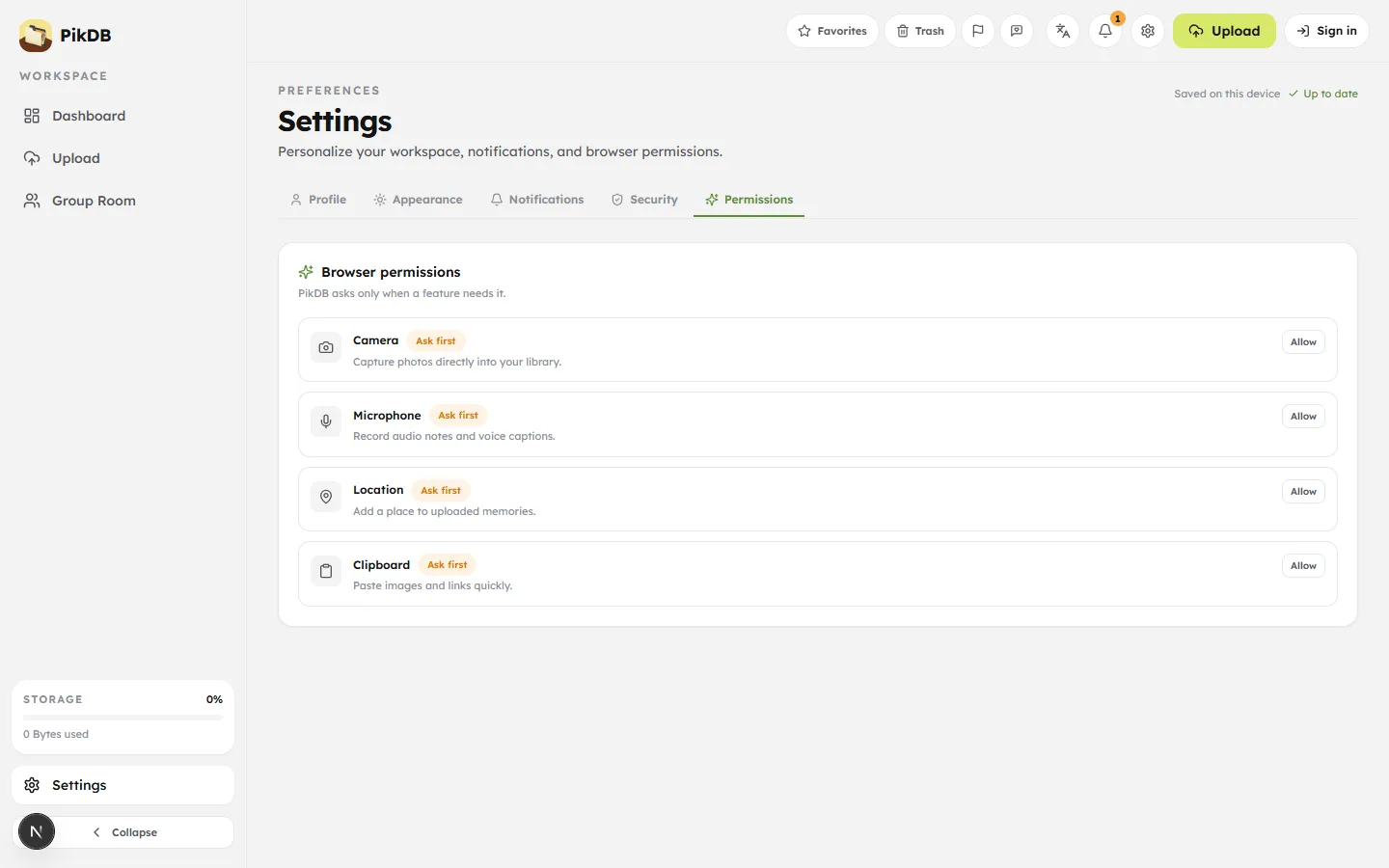
Permissions are opt-in on purpose. PikDB asks only when a feature needs it, and you stay in control — you can revoke anything later from settings or directly in your browser's site settings.
If a permission prompt was dismissed and the feature isn't working, re-enable it from your browser's address-bar site settings, then refresh the page.